Showing posts with label rooting guide. Show all posts
Tuesday, 26 March 2013

How to root Lava XOLO A700 | Easy Way


How to Root Lava XOLO A700 is what you searching? if yes then you are at right place. We will root Lava XOLO A700 by Bin4ry Tool. Bin4ry is a great tool for rooting almost all android devices and we will root it by this only.
Lava XOLO A700 is a brilliant device. It is very fast, stable device and users are giving very nice responses of this Lava XOLO A700. Lava XOLO A700 comes with Yes, 1GHz Dual-core MediaTek MT6577 Processor which makes your Gaming, multitasking experience awesome. MediaTek is awesome chipset which makes device faster than other chipset. There, the camera has got multiple many features which are not in common devices Rear camera: 5.0 MP Camera (2592x1944 Pixels) with HDR, Auto Focus and LED Flash, Front : 0.3 MP, VGA Camera (640x480 Pixels), Self Timer, Touch Focus, High Dynamic Range. The Screen size and display is very nice: 4.5 inches, IPS LCD Capacitive Touchscreen, 16M Colors and the video playback is very impressive, i.e. 720p@30fps. The operating system i.e. Android, obviously huh is Ice Cream Sandwitch (4.0) which can be further upgraded to JellyBean (4.1). The GPS is but obvious in most android so this is also supporting GPS, with A-GPS support with Google Maps. Yep, it supports 3G with HSDPA, 7.2 Mbps; HSUPA, 5.76 Mbps speed. Lava XOLO A700 comes with vast number of sensors like Accelerometer, Proximity and Ambient Light Sensor. The RAM is not quite impressive as comparative to other high end devices, the RAM is just 512 MB which is common in almost all devices but much better than 256 MB RAM so gamers, don't be dam harsh gamers. Oh! Forgot the main topic! Lets see rooting Lava XOLO A700.


Responsibility 

Geekyzz is ~not~ responsible for your bricked Lava XOLO A700. Rooting voids your warranty, be careful while rooting your android device, if you did anything wrong and bricked  Lava XOLO A700 its your responsibility but i will help you to unbrick your Lava XOLO A700, but please be careful while rooting.


Must Read:
Removing Lag from HD games android
Fixing Google Play Store application can't download error


What you need

1 Bin4ry Rooting Toolkit,            Bin4ry Rooting Toolkit XDA thread(on first post)

2 Lava XOLO A700 (No download link :P)

3  Download .Android (its on .rar).
 Extract android.rar in C:>Users>YourUserName and Reboot your computer. 


Rooting Lava XOLO A700-

How to Root Lava XOLO A700-


1 Enable USB debugging in android by going, settings>Developer options>USB debugging, enable USB 
debugging check box.

2 Download, unpack Bin4ry Rooting Toolkit into 1 folder

3 Double Click (Run): RunMe.bat
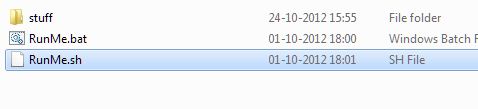
 
(Note: Open RunMe.bat not RunMe.sh)


4 Press "1" when launched (Normal Mode)
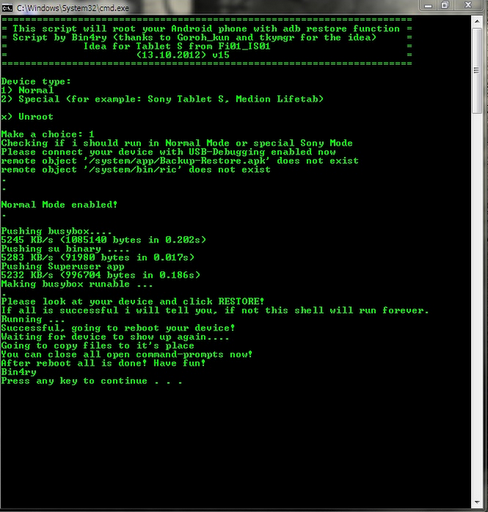
5 It will root automatically and will display as above.

6 When done, press any key

7 When Rooted, then shout 'Yippy, Rooted My Lava XOLO A700'

Wait..... See this awesome list of Tweaks/Mods for Lava XOLO A700 here- Click ME
Saturday, 23 March 2013

How To Root Micromax A87 Ninja 4.0- Easy Way


'How to Root Micromax A87 Ninja 4.0' is what you searching? if yes then you are at right place. Micromax A87 is very good device. It has WVGA screen (4 inches screen). It comes with 1 GHz CPU which makes your gaming experience very awesome and overall improvement in your android device. Micromax A87 has a problem, which is of too much less ram. The ram available for Micromax A87 is just 256 MB whereas other high end and devices have 512 MB Ram or 1GB Ram. But the price is too much affordable, it is just of 5.5K or something. It's GPU is very powerful. It runs on Android 2.3 (GingerBread) which is old, but you can do many things like customizing your micromax a87. Micromax A87 Rocks after you install RAMEXPANDER and increase your micromax a87's Ram, yeah! you can increase ram of your micromax a87 ninja 4.0. Many sites will tell you to download android SDK which some users cannot download, but here, i am gonna provide ".android" folder to you!


Responsibility 

Geekyzz is ~not~ responsible for your bricked Micromax A87 Ninja 4.0. Rooting voids your warranty, be careful while rooting your android device, if you did anything wrong and bricked Micromax A87 Ninja 4 its your responsibility but i will help you to unbrick your Micromax A87 Ninja 4, but please be careful while rooting.


How to Root Micromax A87 Ninja 4.0

What you need to root Micromax A87 Ninja 4.0

1 Bin4ry Rooting Toolkit,            Bin4ry Rooting Toolkit XDA thread(on first post)

2 Micromax A87 Ninja 4.0 (No download link for  Micromax A87 Ninja 4.0 :P)

3  Download .Android (its on .rar).
 Extract android.rar in C:>Users>YourUserName and Reboot your computer. 


Rooting Micromax A87 Ninja 4.0-

How to Root Micromax A87 Ninja 4.0-


1 Enable USB debugging on Micromax A87 Ninja 4.0 by going, settings>Developer options>USB debugging, enable USB debugging check box.

2 Download, unpack Bin4ry Rooting Toolkit into 1 folder

3 Double Click (Run): RunMe.bat
 
(Note: Open RunMe.bat not RunMe.sh)


4 Press "1" when launched (Normal Mode)


5 It will root automatically and will display as above.

6 When done, press any key

7 When Rooted, then shout 'Yippee, Rooted My Micromax A87 Ninja 4.0'


After install recovery, you can install many roms and many mods like-

Friday, 22 March 2013

How to root Micromax A68 Smarty 4.0- Easy way


How to root Micromax A68 4.0 Smarty? is what you searching? if yes then you are at right place. I will show you how to root micromax a68 4.0 smarty. I am creating this guide on public demand. This device has very less rooting guides so i thought let's make 1 guide and help people to root thier Micromax A68 4.0 Smarty.
Micromax A68 4.0 Smarty is very smart, fast android device. It comes with 4 Inches of display screen which makes your gaming better. Smarty has 1 Ghz processor which improves your gaming experience. 1Ghz CPU is very common these days but still it is faster than other 1Ghz devices like Micromax A87 Ninja 4, Micromax A57 Ninja 3 etc. Micromax have released many gingerbread devices but GB is quite boring, but micromax a68 smarty 4.0 is powered with android 4.0 Ice Cream Sandwitch. Micromax only release Dual sim android devices because in India, almost every body is having 2 SIMs so Micromax A68 4.0 Smarty also supports dual sim standby sim cards. The camera is very nice with 5MP quality, 2592x1944 pixels and with 4x zoom which makes your pictures clear (if not using 4x zoom, if using zoom obviously, it will be some much blurred). As like Many Android is has Wi-fi, bluetooth. Most devices runs of 512 MB ram so this micromax a68 4.0 Smarty also runs on 512 RAM, i have micromax a87, it has 256 MB RAM ah..i know i can't even play temple run and other small HD games too without using RAMEXPANDER but this micromax a68 Smarty is having 512 MB Ram so less expectations of getting lags in android HD games (like temple run etc). So, micromax a68 Smarty is having nice specifications but it is kinda bore without rooting. Wait..don't leave reading..I will guide you how to root miromax a68 Smarty. Don't worry it will be easy enough.


Must Read:


Responsibility 

Geekyzz is ~not~ responsible for your bricked Micromax A68 Smarty 4.0. Rooting voids your warranty, be careful while rooting your android device, if you did anything wrong and bricked Micromax A68 Smarty 4.0 its your responsibility but i will help you to unbrick your Micromax A68 Smarty 4.0, but please be careful while rooting.


What you need:
1 Bin4ry Rooting Toolkit,            Bin4ry Rooting Toolkit XDA thread(on first post)

2 Micromax A68 4.0 Smarty.


3 Micromax A68's Battery charged upto 75%

4  Download .Android (its on .rar).

 Extract android.rar in C:>Users>YourUserName and Reboot your computer.
Rooting Micromax A68 Smarty


1 Enable USB debugging in android by going, settings>Developer options>USB debugging, enable USB 
debugging check box.

2 Download, unpack Bin4ry Rooting Toolkit into 1 folder

3 Double Click (Run): RunMe.bat
 
(Note: Open RunMe.bat not RunMe.sh)


4 Press "1" when launched, (Normal Mode) to root micromax a68 4.0 smarty.

5 It will automatically root your micromax a68 4.0 smarty.

Note: When it is rooting, please do not disconnect your USB.

6 When done, press any key (ah..don't ask me where is "any key" lol).

7 When Rooted, then shout 'Yippy, Rooted My Micromax A68 4.0 Smarty!'

----------------------------------

After Rooting Micromax A68 Smarty you can install custom rom in your a68 4.0 smarty-

Sunday, 17 March 2013

How to Root Samsung Galaxy Ace (S5830)


How to Root Samsung Galaxy Ace, is what you searching? if yes then you are at right place. Samsung Galaxy Ace is really awesome device. Samsung Released Galaxy Ace and it got hit market and it was too popular device that it was out of stock everywhere. Samsung Galaxy Ace has too many roms, recoveries kernels etc but you need to root samsung galaxy ace before installing them to you Ace. This Samsung Galaxy Ace has 5 MP camera which makes pictures very clear with smile detection. Samsung Galaxy Ace has got 800Mhz processor which can be overclocked to 1Ghz+ after rooting and installing custom kernel. It comes with GingerBread which can be upgraded to Ice Cream Sandwitch or JellyBean after you root samsung galaxy ace. Rooting is great thing. It is safe but voids warranty so think before rooting your samsung galaxy ace. Lets See how to root samsung galaxy ace and further details-

Must Read:
What is Rooting | Why to Root | Features of Rooting


Things you need:
Samsung Galaxy Ace S5830
Rooting Toolkit
Battery Charged upto 60% for rooting of samsung galaxy ace


How to Root Samsung Galaxy Ace S5830

1 Download the Rooting Toolkit and place it on SDcard
Note: do not extract it, just put as it is in SDcard

2 After putting in your SDcard rename it to 'update.zip' or whatever (you can proceed without rooting too, but if you are renaming make sure you make ".zip" as extention.

3 Switch of your Samsung Galaxy Ace.

4 simultaneously press Home key, Power Key, Volume Key till you enter recovery mode, when you will enter the recovery mode you can stop pressing all the keys.

5 You can navigate up and down by volume up and down key and you can select by pressing the power button on samsung galaxy ace.

6 Scroll down to second option, "apply update from sdcard" and select the .zip file which you renamed.
 It will root your samsung galaxy ace. This process would take 1-10 Seconds (not minutes).

7 When it is done, scroll up and select "Reboo tsystem  now" or if you cannot do or you cannot find that option, simply remove battery and start it.

8 When you will reboot, open application drawer scroll it and you will see an application named "Superuser". If you found it, it means you have successfully rooted your samsung galaxy ace. If you still cannot believe you can use any root checker application available at play store.

You have rooted your samsung galaxy ace now shout 'yippy! i have rooted my samsung galaxy ace" now you can search on google for custom recoveries, custom roms or custom kernerls for your samsung galaxy ace.
Thursday, 14 March 2013

How To Root Micromax A89- Easy Way


'How to root micromax a89' is what you are searching? If yes then your search is ended here i will show you how to root micromax a89. Micromax A89 is very awesome device which comes with dual core 1 GHz. Dual Core increases android power too much, none of application lags, very very less lags.
Micromax A89's Benchmark is more than of Micromax A110 Canvas 2. Rooting Micromax A89 is an easy process. This device has 4 inches of WVGA screen. Most of micromax devices rolls with 256 MB which makes phone useless but this phone comes with 512 MB ram which increases your multitasking, gaming experience. Micromax A89 is popular device and it also supports 3MP awesome camera which takes your pictures very nice. But hey, can you customize your device, can you install any custom rom or any other things without rooting your device? Obviously your answer would be No so let us begin the journey of  'How To Root Micromax A89- Easy way-'


Must See:


Responsibility 

Geekyzz is ~not~ responsible for your bricked Micromax A89. Rooting voids your warranty, be careful while rooting your android device, if you did anything wrong and bricked Micromax A89      its your responsibility but i will help you to unbrick your Micromax A89, but please be careful
while rooting.

Requirements:
Micromax A89
USB

How to Root Micromax A89-

1  Download Bin4ry Rooting Tools and unpack it in any folder.

2 Enable USB debugging on Micromax A89 by- Settings>Applications>Development>Usb debugging (tick it). 

3 Now, connect your Micromax A89  to your computer or laptop (do not mount SDcard while connecting).

4 Drivers would install it-self if it does not it may display you to install. If it does not display follow this guide- Click ME

5 After installing drivers of micromax a89, open Place where you extracted Bin4ry Rooting toolkit (Folder name could be anything, it depends on what you named, stock name is "Root_script_by_Bin4ry_v17". 

6 Open file 'RunMe.bat'.


7 It will open command prompt which will consist of the script, now choose normal mode ( enter 1 ) and hit enter for rooting micromax a89.

RunMe1

8 It will root your micromax a89 and follow on screen instructions. Your Micromax A89 might root 1-2 times while rooting your Micromax A89 because it needs to install superuser APK and some files. So please kindly, wait.

9 When it is done, shout 'Yippy, I have Rooted My Micromax A89'.


*Now, you can install Any Application which requires root or anything! Enjoy!*


Now, install best custom rom for micromax a89- Xtreme- Mod 4